> ## Documentation Index
> Fetch the complete documentation index at: https://hub.hcompany.ai/llms.txt
> Use this file to discover all available pages before exploring further.
# Automate an expense report from the CLI
> Run HoloDesktop CLI directly from the command line to read receipts, update a spreadsheet, draft an email, and verify the result.
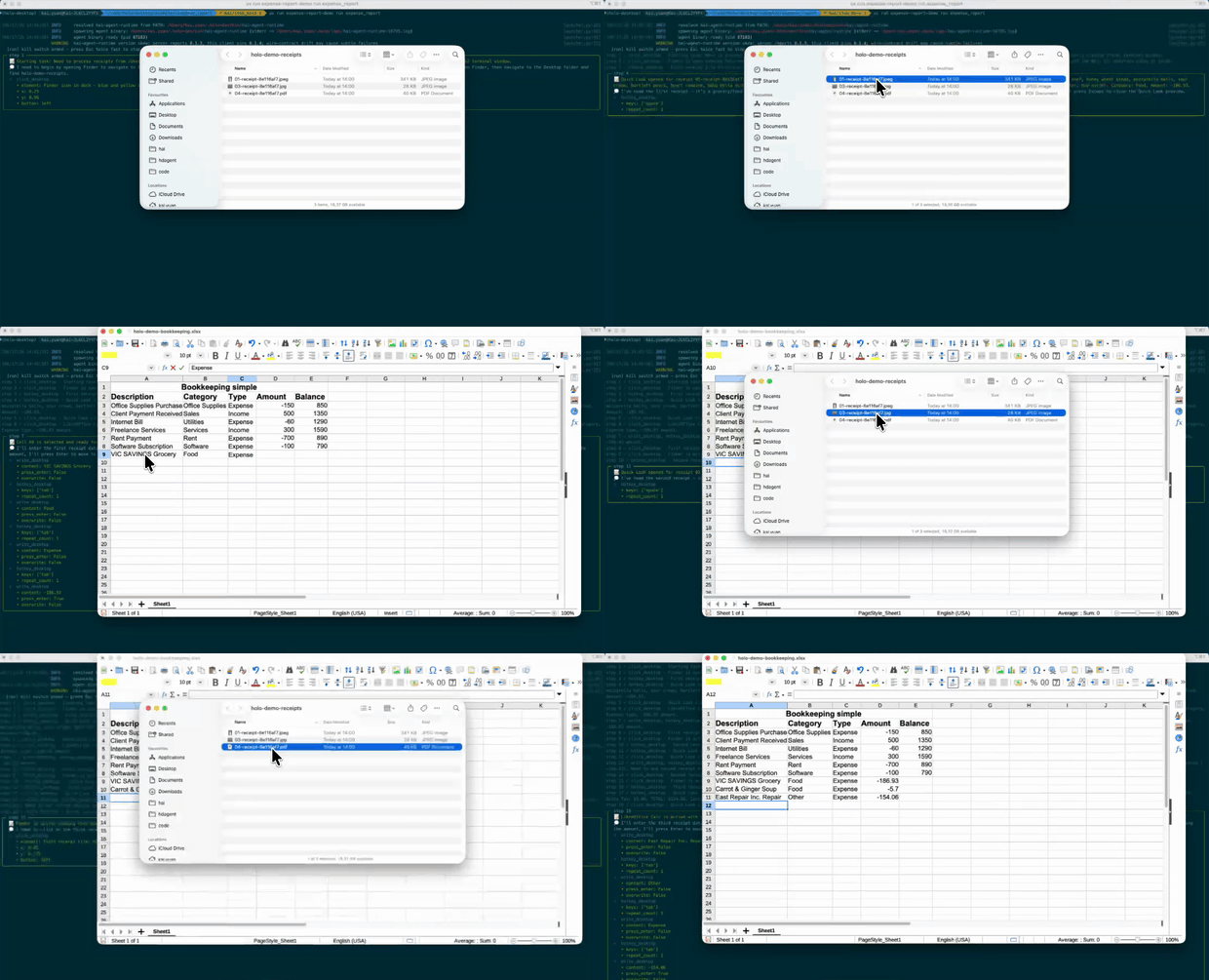
This example shows the simplest direct HoloDesktop CLI workflow: run a desktop task from the command line, let the CLI operate normal apps, and verify the result with deterministic checks.
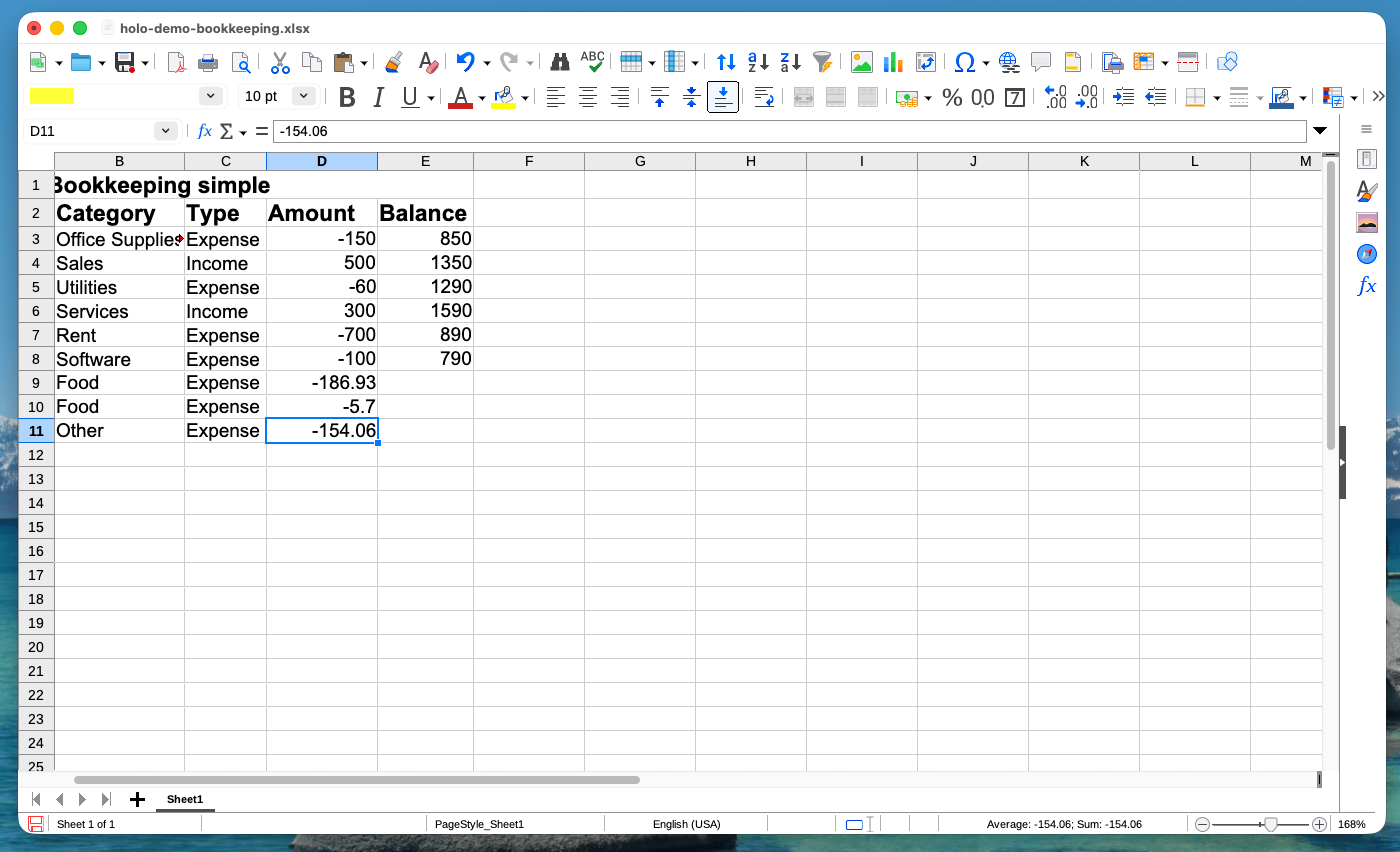
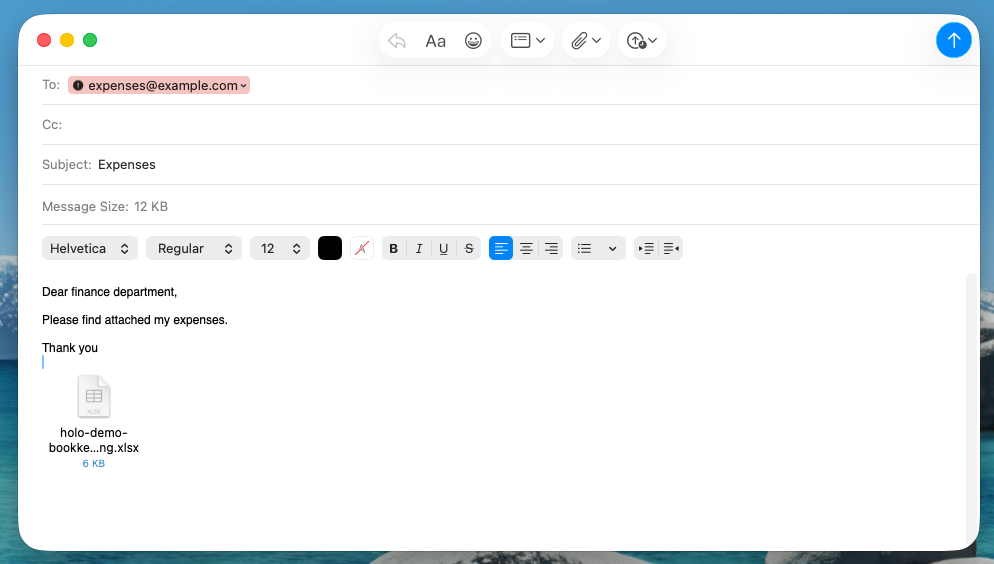
HoloDesktop CLI reads three staged receipt files, adds one expense row per receipt to a LibreOffice Calc ledger, saves the spreadsheet, and creates an unsent Mail draft with the sheet attached.
```mermaid theme={null}
flowchart LR
cli["holo-demo run expense_report"] --> stage["Stage pinned files"]
stage --> apps["Open Finder, LibreOffice, and Mail"]
apps --> holo["HoloDesktop CLI operates the desktop"]
holo --> ledger["Updated ledger"]
holo --> draft["Mail draft"]
ledger --> verify["Deterministic verifier"]
draft --> verify
verify --> artifacts["events.jsonl, task.json, summary CSV"]
```
## What this teaches
The Claude Code example shows HoloDesktop CLI inside an agent host. This example removes the host and shows the CLI as a standalone desktop operator:
* the CLI starts the run;
* the harness prepares the desktop state;
* HoloDesktop CLI observes receipts and controls apps visually;
* verifiers decide whether the run actually worked;
* run artifacts explain what happened step by step.
Use this pattern for local demos, eval harnesses, and release smoke checks that need real desktop behavior rather than only API calls.
## Before you run it
This is a full desktop automation run and may take several minutes. On a first run, macOS or the apps may show permission and onboarding dialogs.
During the run:
* do not use the machine for other work;
* expect Finder, LibreOffice, Preview or QuickLook, and Mail to come to the foreground;
* allow app permissions if macOS asks for access to Desktop files;
* do not click Send in Mail if you take over manually.
If you only want to inspect what the harness will do, use `--dry-run` first.
## Prerequisites
From the `holo-desktop-cli` checkout, install the workspace:
```bash theme={null}
uv sync --all-groups
```
The example currently targets macOS and expects:
* LibreOffice installed at `/Applications/LibreOffice.app`;
* Mail available locally;
* HoloDesktop CLI configured for hosted mode or local model mode;
* the managed `hai-agent-runtime` installed, or available on `PATH`.
If you have not run HoloDesktop CLI before, a first real run may download the pinned desktop runtime under:
```text theme={null}
~/.holo/runtime/
```
For hosted mode, sign in before running the demo:
```bash theme={null}
uv run holo login
```
For local mode, start your OpenAI-compatible model server and pass `--base-url` and `--model` to the demo command.
## Install the demo skill
The demo includes a small HoloDesktop CLI skill that gives the agent task-specific guidance for expense-report work. Install it once:
```bash theme={null}
cd examples/holo-demos
uv run holo-demo install-skills
```
The installer copies the bundled skill into:
```text theme={null}
~/.holo/skills/expense-report/
```
It is safe to rerun. If you edit the bundled skill later, pass `--force` to overwrite the installed copy.
## Pin the fixtures
The receipts and spreadsheet template come from OSWorld fixtures hosted on Hugging Face. The manifest pins every downloaded file by `sha256`, so the verifier checks known inputs rather than a drifting dataset.
```bash theme={null}
uv run holo-demo pin-fixtures manifests/expense_report.toml
```
The fixtures are written under:
```text theme={null}
examples/holo-demos/fixtures/expense_report/
```
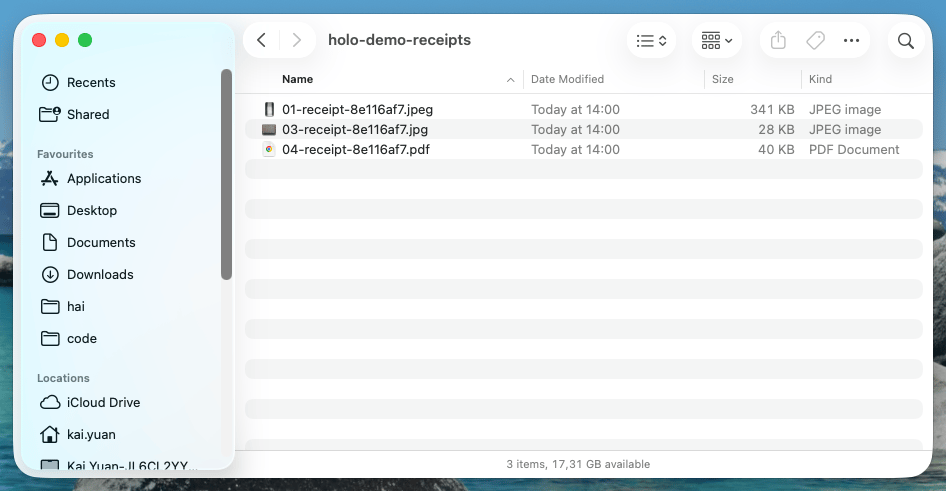
The demo only stages the first three receipts to keep the run short.
 ## Dry-run first
Run a dry-run to see the app launch plan, focus target, prompt, and runtime options without letting HoloDesktop CLI control the desktop:
```bash theme={null}
uv run holo-demo run expense_report --dry-run
```
You should see output like:
```text theme={null}
[dry-run] expense_report: would launch ['com.apple.finder', 'org.libreoffice.script', 'com.apple.mail']
[dry-run] expense_report: would focus 'org.libreoffice.script'
[dry-run] expense_report: output would go to runs/expense_report
```
Use this to inspect the harness before running the actual task.
## Run the demo
Start the real run:
```bash theme={null}
uv run holo-demo run expense_report
```
For a hosted model, the run uses your HoloDesktop CLI login. For a local OpenAI-compatible server, pass the model connection explicitly:
```bash theme={null}
uv run holo-demo run expense_report \
--base-url http://localhost:8000/v1 \
--model Hcompany/Holo-3.1-35B-A3B
```
You can also adjust the cap:
```bash theme={null}
uv run holo-demo run expense_report --max-steps 60
```
## What HoloDesktop CLI does
Before HoloDesktop CLI starts acting, the harness copies files into predictable Desktop locations:
```text theme={null}
~/Desktop/holo-demo-receipts/
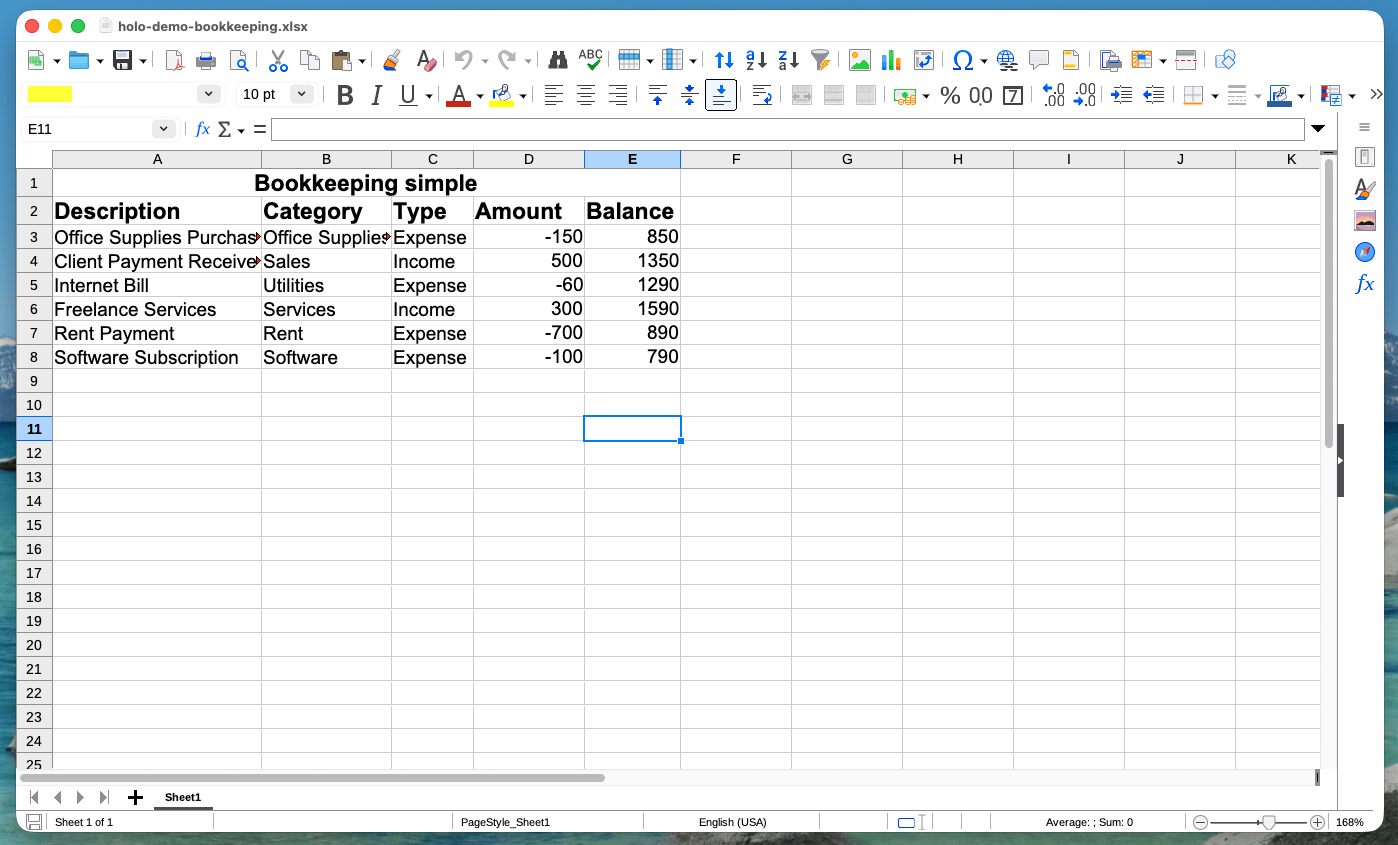
~/Desktop/holo-demo-bookkeeping.xlsx
```
It then opens Finder, LibreOffice Calc, and Mail, and focuses LibreOffice so the agent begins from the ledger.
## Dry-run first
Run a dry-run to see the app launch plan, focus target, prompt, and runtime options without letting HoloDesktop CLI control the desktop:
```bash theme={null}
uv run holo-demo run expense_report --dry-run
```
You should see output like:
```text theme={null}
[dry-run] expense_report: would launch ['com.apple.finder', 'org.libreoffice.script', 'com.apple.mail']
[dry-run] expense_report: would focus 'org.libreoffice.script'
[dry-run] expense_report: output would go to runs/expense_report
```
Use this to inspect the harness before running the actual task.
## Run the demo
Start the real run:
```bash theme={null}
uv run holo-demo run expense_report
```
For a hosted model, the run uses your HoloDesktop CLI login. For a local OpenAI-compatible server, pass the model connection explicitly:
```bash theme={null}
uv run holo-demo run expense_report \
--base-url http://localhost:8000/v1 \
--model Hcompany/Holo-3.1-35B-A3B
```
You can also adjust the cap:
```bash theme={null}
uv run holo-demo run expense_report --max-steps 60
```
## What HoloDesktop CLI does
Before HoloDesktop CLI starts acting, the harness copies files into predictable Desktop locations:
```text theme={null}
~/Desktop/holo-demo-receipts/
~/Desktop/holo-demo-bookkeeping.xlsx
```
It then opens Finder, LibreOffice Calc, and Mail, and focuses LibreOffice so the agent begins from the ledger.
 The task asks HoloDesktop CLI to:
* inspect each receipt or invoice using QuickLook or Preview;
* identify what was bought and the grand total;
* append a row with Description, Category, Type, and Amount;
* record expenses as negative amounts;
* save the spreadsheet;
* create a new Mail draft to `expenses@example.com`;
* set the subject to `Expenses`;
* attach the saved spreadsheet;
* leave the message in Drafts.
The task asks HoloDesktop CLI to:
* inspect each receipt or invoice using QuickLook or Preview;
* identify what was bought and the grand total;
* append a row with Description, Category, Type, and Amount;
* record expenses as negative amounts;
* save the spreadsheet;
* create a new Mail draft to `expenses@example.com`;
* set the subject to `Expenses`;
* attach the saved spreadsheet;
* leave the message in Drafts.
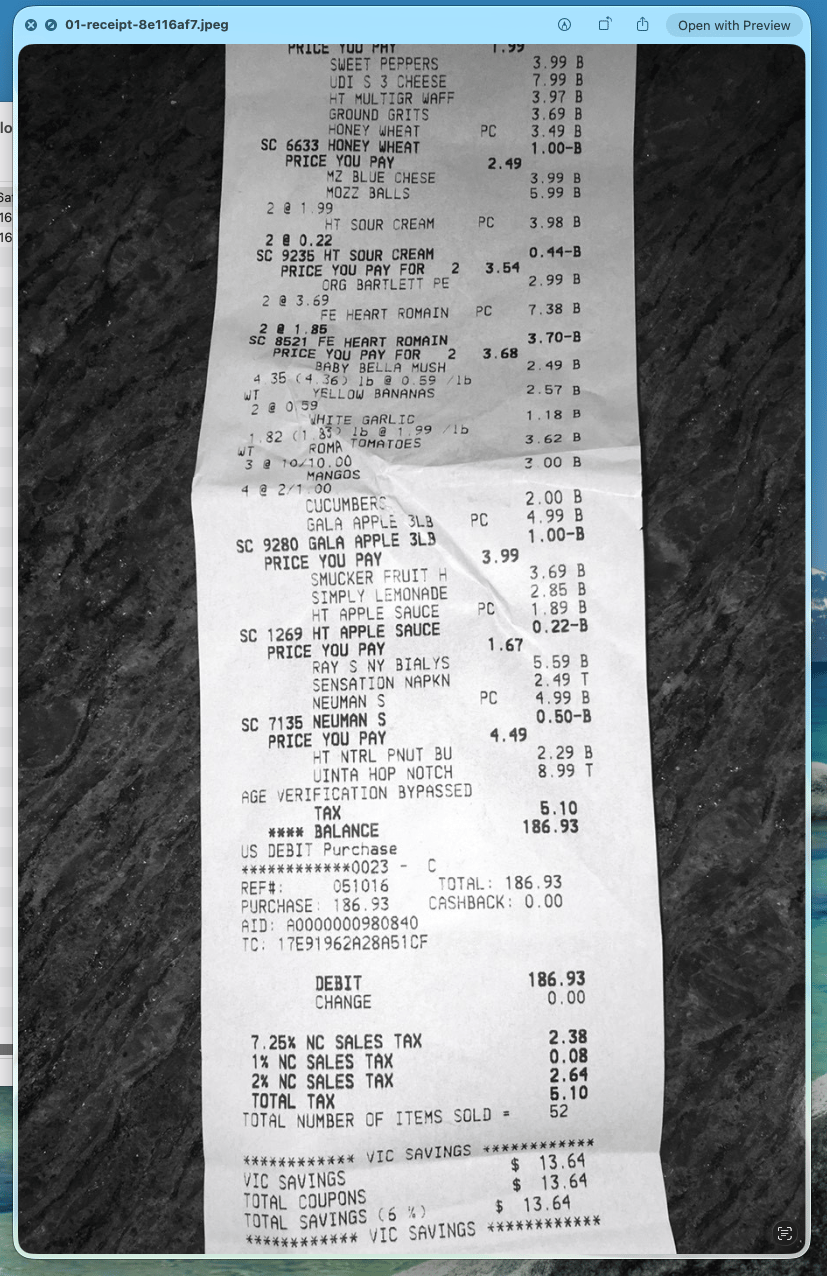 On a normal run, the three staged receipts should produce rows like:
| Description | Category | Type | Amount |
| ----------- | -------- | ------- | ---------- |
| Grocery | Food | Expense | `-186.93` |
| Cash Out | Other | Expense | `-3670.00` |
| Soup | Food | Expense | `-5.70` |
On a normal run, the three staged receipts should produce rows like:
| Description | Category | Type | Amount |
| ----------- | -------- | ------- | ---------- |
| Grocery | Food | Expense | `-186.93` |
| Cash Out | Other | Expense | `-3670.00` |
| Soup | Food | Expense | `-5.70` |
 ## How verification works
The example does not rely on a human watching the desktop and deciding whether it looked right. After the run, deterministic verifiers inspect the artifacts.
The `ledger_rows` verifier opens the spreadsheet with `openpyxl` and checks:
* exactly one new row exists per staged receipt;
* the new amount values match the pinned receipt totals;
* amounts are compared sign-insensitively with a one-cent tolerance.
The `mail_draft` verifier uses AppleScript to check:
* there is a draft addressed to `expenses@example.com`;
* the subject is `Expenses`;
* the draft has at least one attachment.
A passing run should report a verification summary like:
```text theme={null}
verify_pass=2/2
```
If Mail automation permission is denied, the Mail check fails as a harness failure rather than as evidence that HoloDesktop CLI made the wrong UI decision.
## Run artifacts
Each run writes a timestamped directory under:
```text theme={null}
examples/holo-demos/runs/expense_report/
```
The important files are:
| File | What it is for |
| ------------------------ | --------------------------------------------------------------------------------------- |
| `events.jsonl` | One runtime event per line: observations, model reasoning, tool calls, and step timing. |
| `task.json` | The task prompt, result, status, verification results, and run metadata. |
| `runs/summary-demos.csv` | One summary row per demo run, including verification status. |
Interrupted runs are still useful. If you stop the run early, the summary shows it as interrupted and verification may be skipped or incomplete, but `events.jsonl` still records what HoloDesktop CLI saw and did.
After verification, staged Desktop files are moved into:
```text theme={null}
~/.holo/runs/expense_report-quarantine/
```
That keeps the touched files available for inspection without leaving the Desktop cluttered between runs.
## Troubleshooting
If the run gets distracted by another app, stop it and rerun from a quiet desktop session. HoloDesktop CLI controls the visible desktop, so foreground apps matter.
If LibreOffice shows a welcome or file-access dialog, allow it and let the run continue. These first-run dialogs are normal on a fresh machine.
If Mail shows a privacy or onboarding dialog, complete the prompt before expecting the Mail verifier to pass.
If fixture download fails, rerun:
```bash theme={null}
uv run holo-demo pin-fixtures manifests/expense_report.toml
```
If the verifier reports a spreadsheet mismatch, inspect the quarantined workbook and compare it with `events.jsonl` to see whether HoloDesktop CLI read the receipt incorrectly, typed into the wrong cell, or was interrupted before saving.
## Adapt the pattern
The reusable pattern is:
1. Stage known inputs in predictable locations.
2. Launch the apps the task needs.
3. Focus the app where HoloDesktop CLI should begin.
4. Give HoloDesktop CLI a concrete desktop task.
5. Verify the output with code.
6. Keep the run artifacts for debugging and evaluation.
That pattern works well for demos and evals because it separates visible desktop behavior from pass/fail logic. HoloDesktop CLI does the user-visible work; deterministic verifiers decide whether the work met the contract.
## How verification works
The example does not rely on a human watching the desktop and deciding whether it looked right. After the run, deterministic verifiers inspect the artifacts.
The `ledger_rows` verifier opens the spreadsheet with `openpyxl` and checks:
* exactly one new row exists per staged receipt;
* the new amount values match the pinned receipt totals;
* amounts are compared sign-insensitively with a one-cent tolerance.
The `mail_draft` verifier uses AppleScript to check:
* there is a draft addressed to `expenses@example.com`;
* the subject is `Expenses`;
* the draft has at least one attachment.
A passing run should report a verification summary like:
```text theme={null}
verify_pass=2/2
```
If Mail automation permission is denied, the Mail check fails as a harness failure rather than as evidence that HoloDesktop CLI made the wrong UI decision.
## Run artifacts
Each run writes a timestamped directory under:
```text theme={null}
examples/holo-demos/runs/expense_report/
```
The important files are:
| File | What it is for |
| ------------------------ | --------------------------------------------------------------------------------------- |
| `events.jsonl` | One runtime event per line: observations, model reasoning, tool calls, and step timing. |
| `task.json` | The task prompt, result, status, verification results, and run metadata. |
| `runs/summary-demos.csv` | One summary row per demo run, including verification status. |
Interrupted runs are still useful. If you stop the run early, the summary shows it as interrupted and verification may be skipped or incomplete, but `events.jsonl` still records what HoloDesktop CLI saw and did.
After verification, staged Desktop files are moved into:
```text theme={null}
~/.holo/runs/expense_report-quarantine/
```
That keeps the touched files available for inspection without leaving the Desktop cluttered between runs.
## Troubleshooting
If the run gets distracted by another app, stop it and rerun from a quiet desktop session. HoloDesktop CLI controls the visible desktop, so foreground apps matter.
If LibreOffice shows a welcome or file-access dialog, allow it and let the run continue. These first-run dialogs are normal on a fresh machine.
If Mail shows a privacy or onboarding dialog, complete the prompt before expecting the Mail verifier to pass.
If fixture download fails, rerun:
```bash theme={null}
uv run holo-demo pin-fixtures manifests/expense_report.toml
```
If the verifier reports a spreadsheet mismatch, inspect the quarantined workbook and compare it with `events.jsonl` to see whether HoloDesktop CLI read the receipt incorrectly, typed into the wrong cell, or was interrupted before saving.
## Adapt the pattern
The reusable pattern is:
1. Stage known inputs in predictable locations.
2. Launch the apps the task needs.
3. Focus the app where HoloDesktop CLI should begin.
4. Give HoloDesktop CLI a concrete desktop task.
5. Verify the output with code.
6. Keep the run artifacts for debugging and evaluation.
That pattern works well for demos and evals because it separates visible desktop behavior from pass/fail logic. HoloDesktop CLI does the user-visible work; deterministic verifiers decide whether the work met the contract.