

Send receipt photos from your phone, and HoloDesktop CLI turns them into an expense report on your laptop.
Before you run it
This is a full desktop automation run and may take several minutes. On a first run, macOS or the apps may show permission and onboarding dialogs. During the run:- do not use the machine for other work;
- expect Finder, LibreOffice, Preview or QuickLook, and Mail to come to the foreground;
- allow app permissions if macOS asks for access to Desktop files;
- do not click Send in Mail if you take over manually.
--dry-run first.
Prerequisites
From theholo-desktop-cli checkout, install the workspace:
- LibreOffice installed at
/Applications/LibreOffice.app; - Mail available locally;
- HoloDesktop CLI configured for hosted mode or local model mode;
- the managed
hai-agent-runtimeinstalled, or available onPATH.
--base-url and --model to the demo command.
Install the demo skill
The demo includes a small HoloDesktop CLI skill that gives the agent task-specific guidance for expense-report work. Install it once:--force to overwrite the installed copy.
Pin the fixtures
The receipts and spreadsheet template come from OSWorld fixtures hosted on Hugging Face. The manifest pins every downloaded file bysha256, so the verifier checks known inputs rather than a drifting dataset.
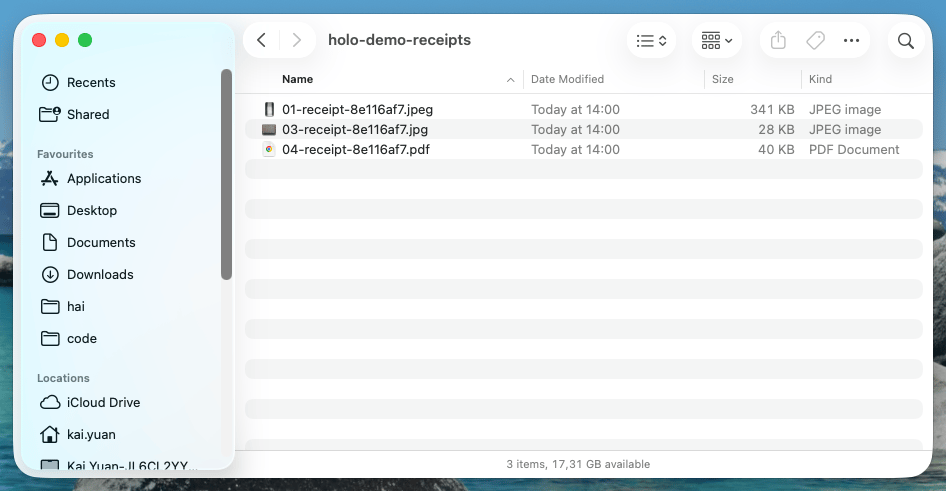
The harness stages three pinned receipt files before HoloDesktop CLI starts the desktop task.
Dry-run first
Run a dry-run to see the app launch plan, focus target, prompt, and runtime options without letting HoloDesktop CLI control the desktop:Run the demo
Start the real run:What HoloDesktop CLI does
Before HoloDesktop CLI starts acting, the harness copies files into predictable Desktop locations: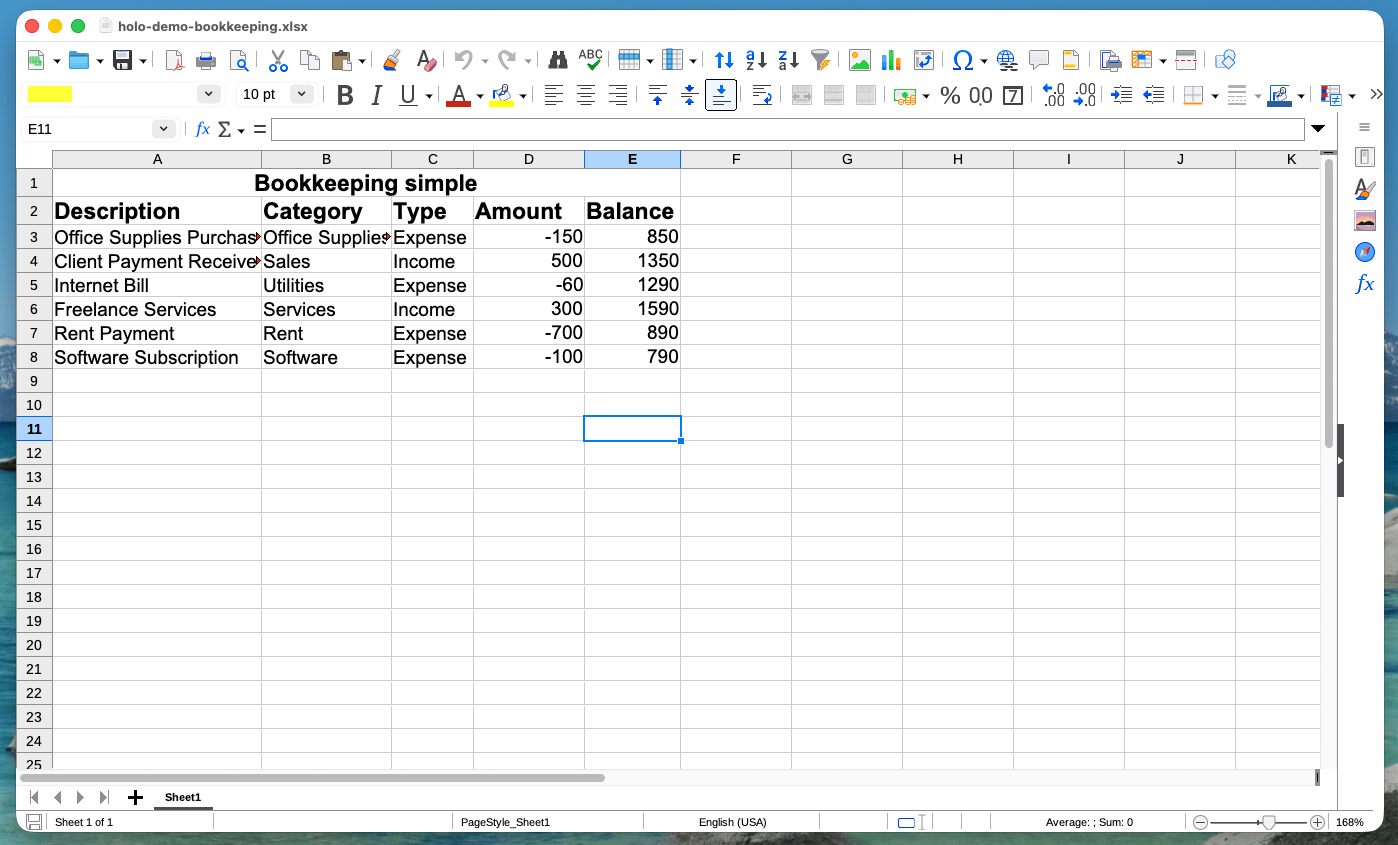
HoloDesktop CLI starts from a known bookkeeping template with rows 1-8 already populated.
- inspect each receipt or invoice using QuickLook or Preview;
- identify what was bought and the grand total;
- append a row with Description, Category, Type, and Amount;
- record expenses as negative amounts;
- save the spreadsheet;
- create a new Mail draft to
expenses@example.com; - set the subject to
Expenses; - attach the saved spreadsheet;
- leave the message in Drafts.
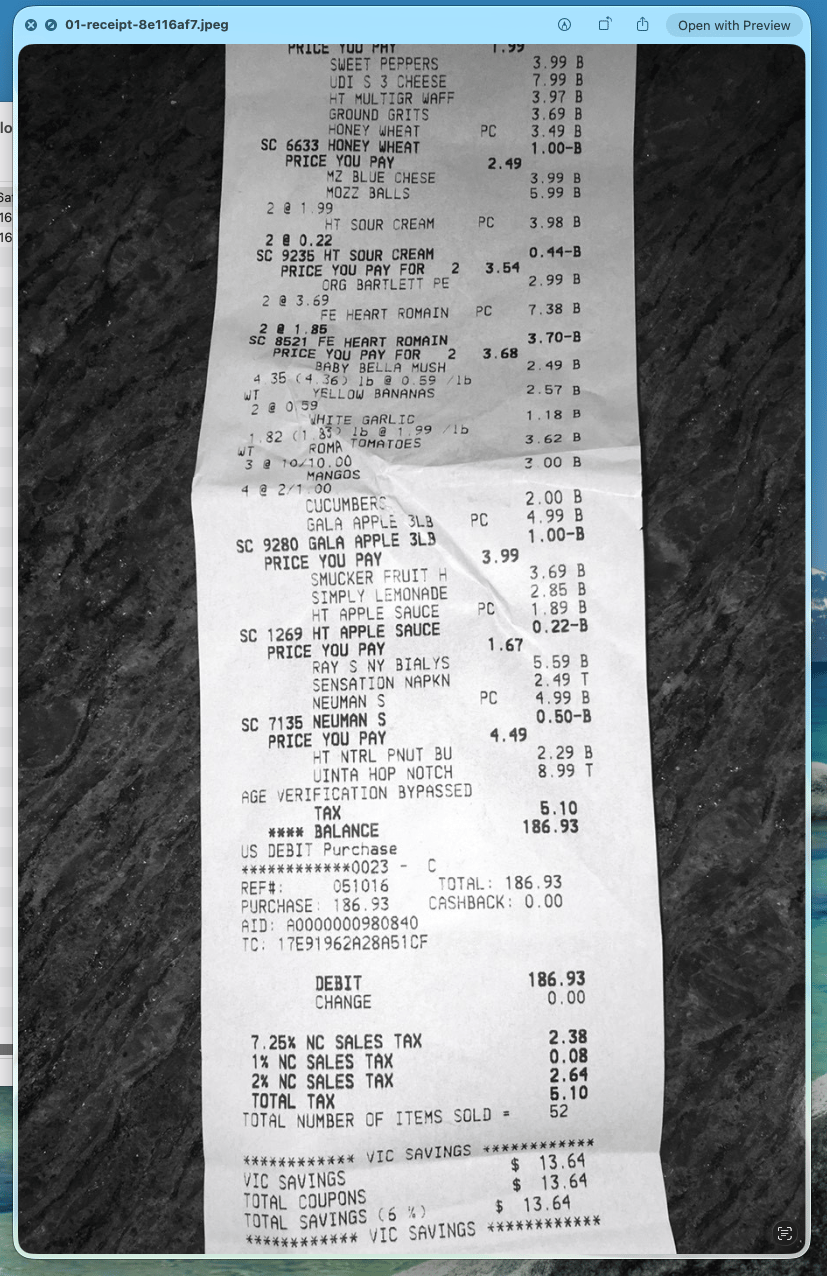
HoloDesktop CLI opens each receipt visually and extracts the amount and category from the document on screen.
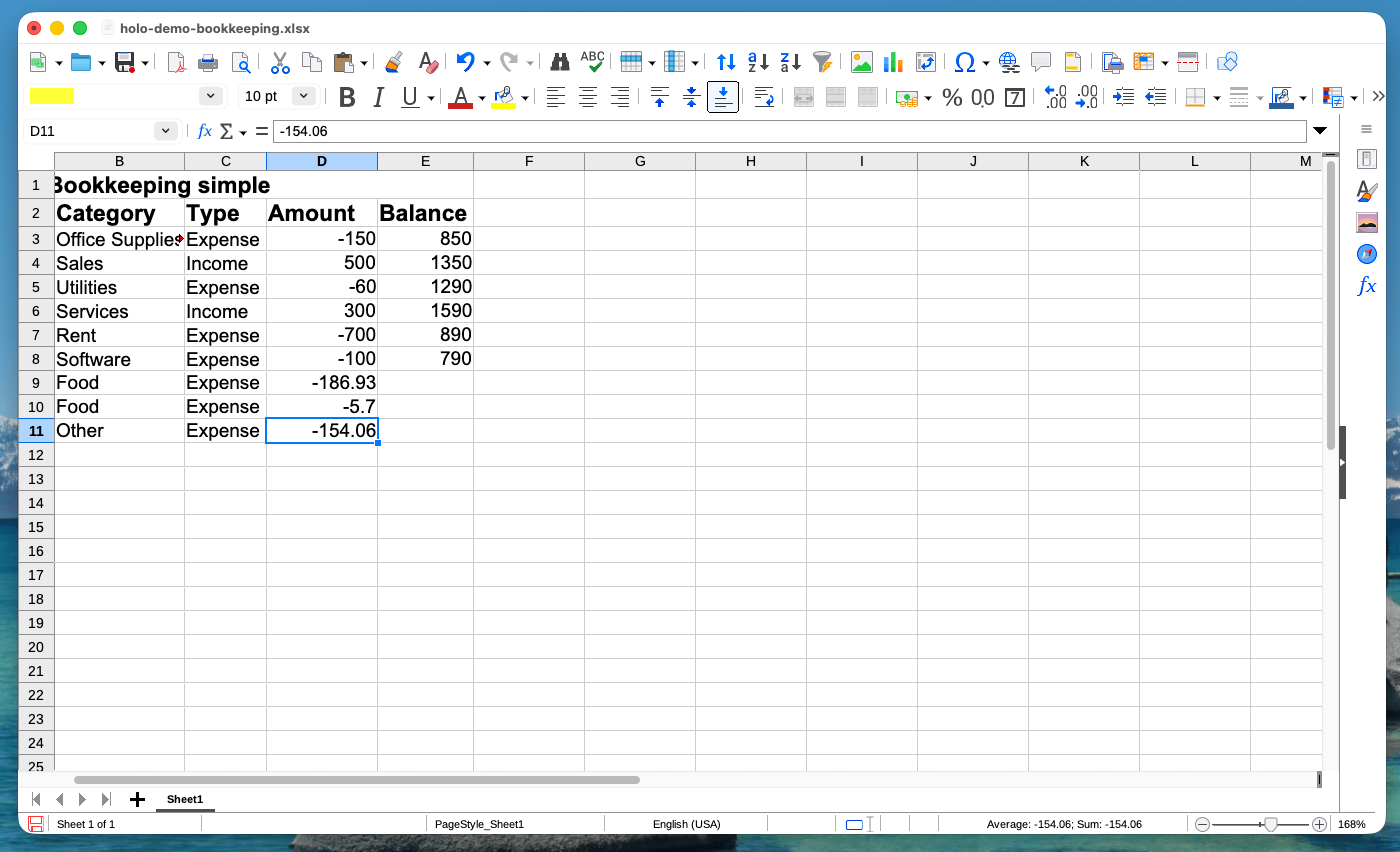
After the run, the ledger contains one new row per processed receipt with the extracted category and amount.
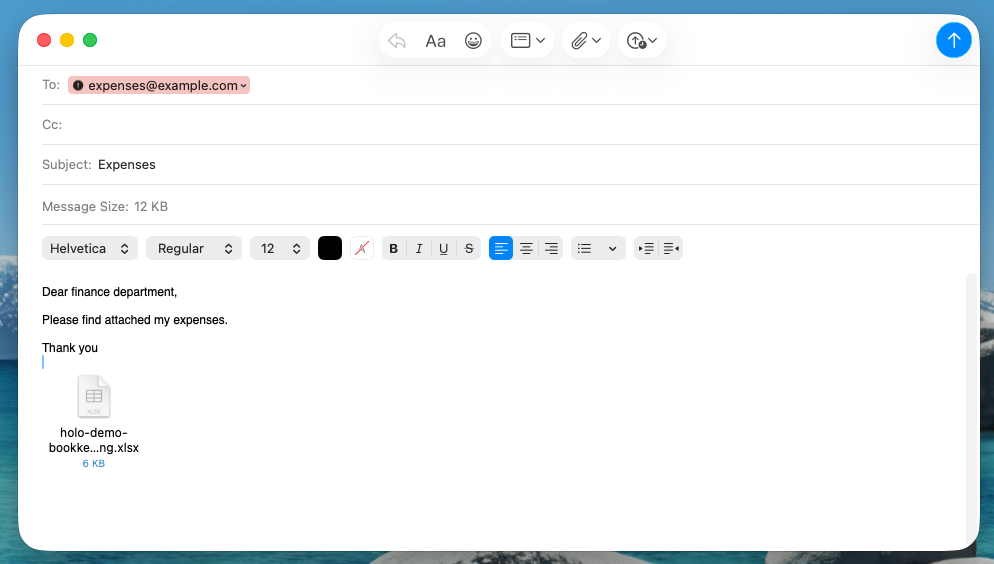
The final desktop artifact is an unsent Mail draft with the saved spreadsheet attached.
How verification works
The example does not rely on a human watching the desktop and deciding whether it looked right. After the run, deterministic verifiers inspect the artifacts. Theledger_rows verifier opens the spreadsheet with openpyxl and checks:
- exactly one new row exists per staged receipt;
- the new amount values match the pinned receipt totals;
- amounts are compared sign-insensitively with a one-cent tolerance.
mail_draft verifier uses AppleScript to check:
- there is a draft addressed to
expenses@example.com; - the subject is
Expenses; - the draft has at least one attachment.
Run artifacts
Each run writes a timestamped directory under:events.jsonl still records what HoloDesktop CLI saw and did.
After verification, staged Desktop files are moved into:
Troubleshooting
If the run gets distracted by another app, stop it and rerun from a quiet desktop session. HoloDesktop CLI controls the visible desktop, so foreground apps matter. If LibreOffice shows a welcome or file-access dialog, allow it and let the run continue. These first-run dialogs are normal on a fresh machine. If Mail shows a privacy or onboarding dialog, complete the prompt before expecting the Mail verifier to pass. If fixture download fails, rerun:events.jsonl to see whether HoloDesktop CLI read the receipt incorrectly, typed into the wrong cell, or was interrupted before saving.
Adapt the pattern
The CLI runs as a standalone desktop operator; a harness around it owns setup and verification.Stage known inputs in predictable locations
Launch the apps the task needs
Focus the app where HoloDesktop CLI should begin
Give HoloDesktop CLI a concrete desktop task
Verify the output with code
Keep the run artifacts for debugging and evaluation
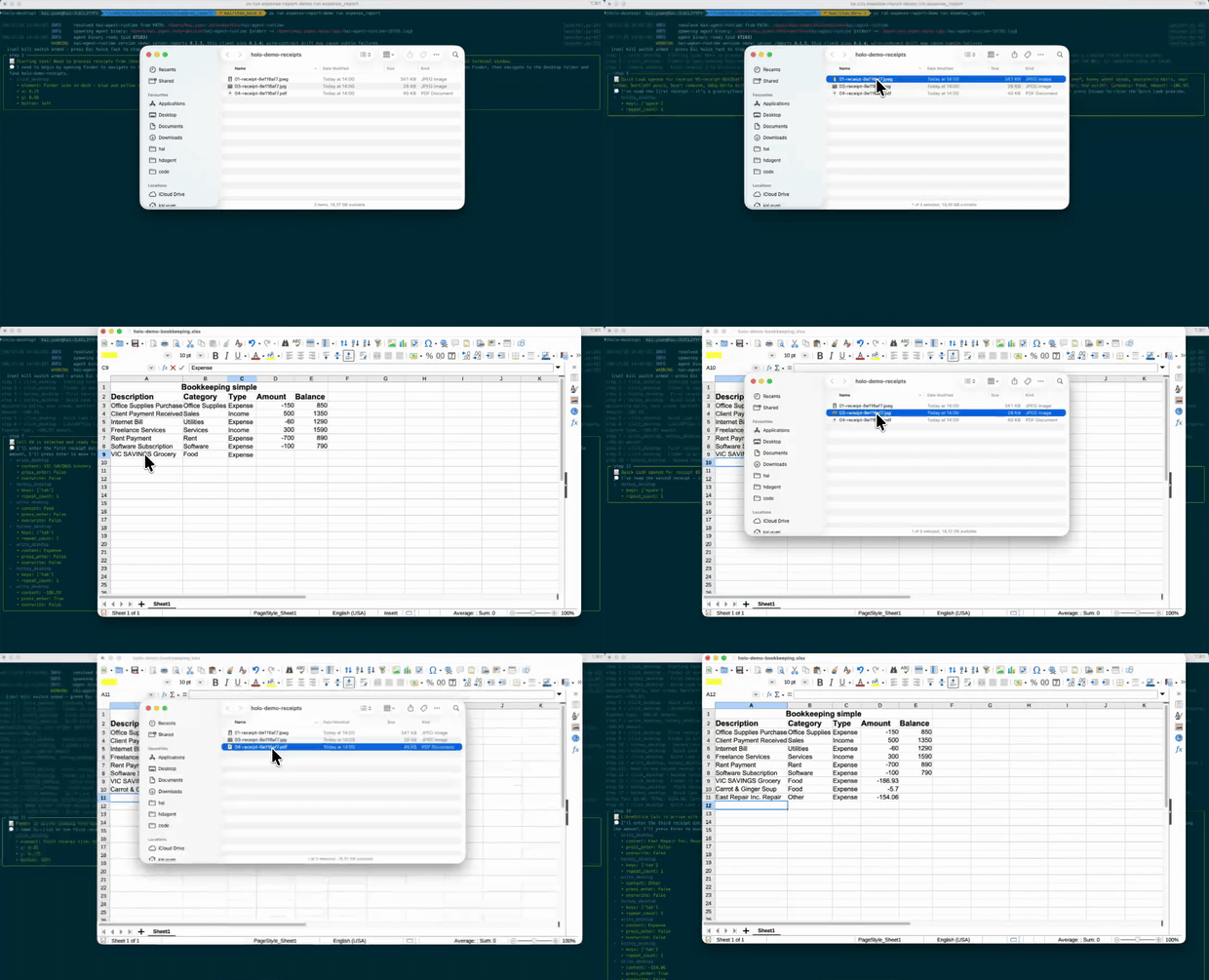
Run montage: HoloDesktop CLI opens staged receipts, reads them visually, and updates the bookkeeping ledger. The verifier, not the GIF, decides whether the run passed.